Monday, 28 February 2011
28th February
Today we created our video using final cut express. we used clips that we thought looked best, and would keep the audiences attention throughout. We added in cross dissolves so that one clip went smoothly into the next. We also muted the sound of it as we will be creating our own soundtrack to go on it.

Friday, 25 February 2011
25th February
We took the vidoe camera out today to create our video to go onto our site. we went down the the dance departement and filmed a girl and boy talking about the competition and then we filmed the dance.
Thursday, 24 February 2011
24th february
Today we photoshoped any images we wanted to use in our slideshow. again we mainly cropped and airbrushed some of the images so that they would have more of an impact on the audience. once this was done we added them into iPhoto so that we could create our slideshow. We changed the speed that each slide was shown at, and then saved it. Once we had done this, we added it to our website and had it copied 3 times, to give 3 times the impact to the audience and also so that they could see more than one picture at once.
Wednesday, 23 February 2011
23rd february
We photoshoped the images we wanted on our website today. Mostly we cropped them to the size we wanted, and some we airbrushed slightly, but there wereno big changes. once this was completed, we added them onto the correct pages of the website.
Tuesday, 22 February 2011
22nd February
Today we found icons for links to other sites such as facebook and google to create a more realisitic look to our website and also for links to other pages to do with our website. We then made all of our links active by using the inspector. we made the links have rollover but once the page was visited the text wouldnt change colour as neither Mia nor I found this looked as good.
Monday, 21 February 2011
21st February
Today we carried on finishing of the basics of our site. Firstly we added in the time and date to make it look mor like a real site, and we then added in a search engine to the top of the page to make it easier for someone to find their way around. We then created the link box down the left hand side of the page, for another way for people to get around the site.
Friday, 18 February 2011
18th February
Today we carried on where we left off. We started to write up the text that needed to go into the text box's and then finished creating our navigation bar so that people could find their way around the site.
Thursday, 17 February 2011
In todays lesson we started to create our website. We created the initial layout of each page to create a base for us to start working on. We added colours onto the text box's and chose fonts and colours. We then added in where we wanted the logo to go and the titles for each page at the top next to the logo. This was an easy process as when you copy and paste on iWeb, it pastes everything to the exact position it was originally in.
Wednesday, 16 February 2011
website layouts
In todays lesson, we started to design each page of our website. We tried to keep the same layout consistent on every page to make the webiste flow and to also make the website look more like the websites we researched, as they also kept a roughly same layout throughout.
Tuesday, 15 February 2011
Making our logo
After drawing our logo in the previous lesson, we started to design in using photoshop. We used the shape tools to get each of the shapes in the logo; we had to create a new layer every time we created a new shape. Then we used the paint bucket tool to fill in the colours of each part of the face, for this we used bold primary colours, but softened them down slightly so that they weren't so harsh. Below is the finished logo:


Monday, 14 February 2011
logo design for main website
In todays lesson we drew out our design for our logo for our main website. we made it a very simple and child friendly logo as our website is about child abuse and we wanted something that children would recognise as something good. We also used primary colours in the logo to keep it simple yet effective and child friendly.
Friday, 11 February 2011
Today we created our shotlist for our images and video. We made this so that we could go back to it for reference if we needed to and also to make it clear exactly what sort of images we need. Below is the shotlist for our images and video:
IMAGES:
- pictures of sad childen, so that they have an emotional impact on the audience.
- pictures of groups of people to represent the people that have done fundraising events for the charity.
- pictures of new families that with ex abused children who are now happy.
- pictures of a teenager on a phone to represent the contacting part of the website.
- both boys and girls in pictures to represent gender.
- a range of age groups of the children
VIDEO:
- clip of a girl and boy explaining to the audience the fundraising event they are doing in order to help the audience understand.
- different clips of dancing each featuring boys and girls, some parts with one boy and one girl, other parts with the group as a whole.
IMAGES:
- pictures of sad childen, so that they have an emotional impact on the audience.
- pictures of groups of people to represent the people that have done fundraising events for the charity.
- pictures of new families that with ex abused children who are now happy.
- pictures of a teenager on a phone to represent the contacting part of the website.
- both boys and girls in pictures to represent gender.
- a range of age groups of the children
VIDEO:
- clip of a girl and boy explaining to the audience the fundraising event they are doing in order to help the audience understand.
- different clips of dancing each featuring boys and girls, some parts with one boy and one girl, other parts with the group as a whole.
Thursday, 10 February 2011
Design brief for main website
After doing the research on charity websites, we made our design brief for our main website. We created this brief to make it easy for us to make our website quickly and efficiently and to also show that we have thought and planned through the making behind our website. Below is our brief:

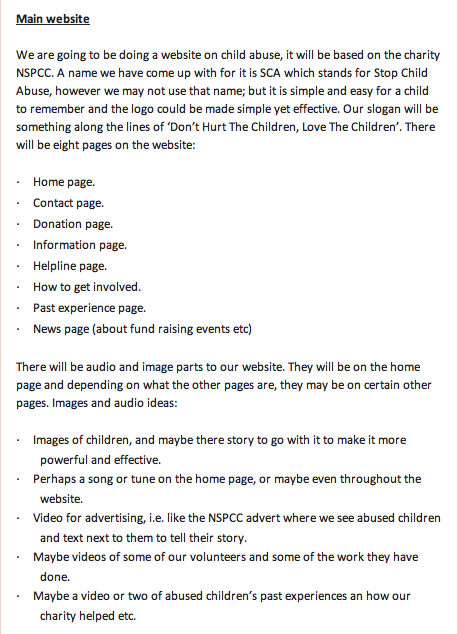
website research for main website.


In today lesson we paired up to create our main website. I paired up with Mia and we started researching what children's charity websites were like. Mostly we found that the layouts were a very simple design making it easy for the audience to use and in these cases the websites are also there for children, so it is important that these website are easy to navigate your way around. Each website we looked at had a consistent colour scheme and the colours were usually quite bright and vibrant colours but not too distracting, making it aesthetically pleasing for the audience. We also noticed that each of the websites but one had their logo's in the top left hand corner with nothing around them to distract the audience from them. they were also quite big and took up quite a lot of space at the top of the page. There is also visual aid on each of the homepages of the websites to make it more interesting for the audience that are viewing the website, especially for the younger audience. The links and navigation bars are all very easy to use and clearly places to make it very easy to use, they mostly have rollovers to show you exactly what your clicking on. If the audience found using these hard, there is also search bars on each of the websites. Each of these things we will take into consideration when creating our website.
Wednesday, 9 February 2011
survey graphs for main website

Once we had put together a detailed summary of the answers to our survey, we made a graph for one of the answers to show a different way of looking at the outcome, and to see if it would make it any easier for us later when we start to make our own website.
survey details for main website.

After creating our survey and getting back all our results, we put together a detailed summary of the answers for each question. We found it easier to read answers and find out which answers were most popular with the questionees. It will also make it easier for us to see whether we can make anything better for the audience on our website after we have made it.
Survey for main website
In today's lesson Mia and I created our survey for our main website to find out the demographics (details about people i.e age) and psychographics (details of what people like) so that we could create our website based around this. Below is our survey: POST SURVEY
Tuesday, 8 February 2011
8th February
Today I created all the links on my website and made them active. I done this by highlighting the text/box that i wanted to be a link, then clicking on the inspector and choosing the hyperlink button and then making my hyperlink active to either my home or media page, depending on where the link is taking you.
I also added in any additional photos that needed to be put on the website to finalise my preliminary website. I then published my entire site to check that everything was working okay which it was.
I also added in any additional photos that needed to be put on the website to finalise my preliminary website. I then published my entire site to check that everything was working okay which it was.
Monday, 7 February 2011
7th February
Today I created the slideshow and added it to my website on my homepage. I did this by adding each of the images I wanted onto the program iPhoto and then changing how long i wanted each slide to be shown for. I then saved this and added it to my website.
Friday, 4 February 2011
4th February
In today's lesson I carried on creating my preliminary website. I added in my previously made logo, and also the text into each of the text box's; I changed the colour, size and font of the text to make it astheticly pleasing to the audience, i also aligned the text to the center of the box. I then added the date and time above the navigation bar. I did this by going to insert - date and time - and chose the style of date and time I wanted. i then changed the font, colour and size, and distributed and aligned them evenly.
Thursday, 3 February 2011
3rd February
In today's lesson I decided to edit some of the images I took in previous lessons. I used photoshop to do this, using the information I learnt at the start of the course. I found that most of the images just needed cropping and the hue/saturation levels needed changing to make the picture look brighter/darker. I also blurred parts of the image to give it a bit more of an airbrushed look. Here are some of the images I have edited:


Monday, 31 January 2011
31st January
In todays lesson I created a shotlist for my preliminary website:

I then went out and took pictures around the school in places I thought would show the school at its best. during my research I found that the audience prefers images and visual aid on a website as it engages them more and they find it more interesting, therefore I also thought it would be a good idea to create a slideshow for my website using the iPhoto program as it is a simple yet effective program to use.

I then went out and took pictures around the school in places I thought would show the school at its best. during my research I found that the audience prefers images and visual aid on a website as it engages them more and they find it more interesting, therefore I also thought it would be a good idea to create a slideshow for my website using the iPhoto program as it is a simple yet effective program to use.
Friday, 28 January 2011
28th January
In today's lesson, I started to create my school logo for my preliminary website. to do this I used the program photoshop. I firstly created the shape of the logo by clicking the shape tool, which then created the shape that I was looking for to the exact size I wanted. I then created the text using the text tool, and changed it to the size I thought was best, and made the colour black so it would stand out. I then made the inside of the logo green so that it would follow the colour scheme of the website as the research i have done has shown each website to do this. Below is the logo:


Wednesday, 26 January 2011
26th January
In today's lesson I started to create the basic layout for my preliminary website. Firstly I created the school name of the website by creating a text box and then changing the font and colour to exactly how I wanted it. I then started to create my navigation bar by creating 5 text box's with 5 different titles for each pages that would in theory link to their correct page if the pages were made; then, I joined them together, distributed them evenly, and aligned them from the top. to that they were straight. Next, I changed the colour of the background of the text box's to green and changed the colour of the text to black; I also put a shadow around the whole navigation bar to create depth. After, I started to create each of the text box's that would go onto the home page and placed them exactly where they needed to go, aligning them correctly to start to show the layout clearly. I then filled the background of the text box's to the same green as the navigation bar and added shadows to create depth. I then copied and pasted all of this onto another page which would be my media page.
Tuesday, 25 January 2011
25th January
In todays lesson we started to learn how to use iWeb on the mac computers. This is the program that I will be using to create my preliminary website. We started to experiment with different tools on this program, mainly the inspector tool, as it will be the main tool we will be using. This lesson gave me a brief idea of what we'd be doing in the weeks ahead
Friday, 21 January 2011
Design for school website. Home page and media page.


In todays lesson I drew a design of what I would like my preliminary website to look like. I have gone for a very simple and often used layout, with a typical school logo as it seems most people repoded well to this in the surveys. Both the 'home' and 'media' page will have the logo and image at the top; the navigation bar underneath and a subject link box on the left hand side of the page. There will be many different media links throughout the 'homepage' to make it easy to use for the audience, and the 'media page' will have a clear link back to the 'hompage' on the navigation bar. Although both sketches have come out black and white on the computer, there is a colour scheme throughout of dark green boxes with black writing and a white background. I have tried to keep the typical conventions of a website that I found in my research.
Thursday, 20 January 2011
design brief
 This is my design brief for my preliminary website. By writing a brief it made it clear for me to get every detail as i wanted it and also made it easier for me to get everything done in order. I tried to make this brief as detailed as possible so it was simple to stick to and also show an audience that the website had been thought into.

Wednesday, 19 January 2011
survey
In todays lesson we looked at different questioners and surveys to make it easier for us to make our own survey, in order to create our preliminary website in a way that people would like. Throughout the survey I thought about the use of demographics (details about the person i.e. gender) and psychographics (details of what a person likes) Below is my survey:
survey details and graphs

This is a detailed summary of the results for each of the answers to my survey. I decided to do this so that I could see what the best results were and therefore incorperate them into my preliminary website. Below I have made a couple of graphs from the results I have collected, to make it easier to see what the audience would prefer to see on a website, and how different aspects of a website can make people like/disklike it.

Tuesday, 18 January 2011
website research


In todays lesson we started our preliminary website research in which we had to annotate four different school website and comment on the layout, colours, rollovers, navigation bar and links. I found that all websites were easy to use and each had a very clear layout. the colour schemes of the websites were consistent throughout, however they were mostly plain primary colours. Images were clearly placed on each of the home pages on the websites, and they were clear and astheticly pleasing images. the logo's of the schools were usualy at the top of the home page and all other pages to keep the websites consistent throughout. the links and navigation bars on each school website, were simple and easy to use; some websites had drop down navigation bars making them a bit more complex, however they were still easy to use overall.
Friday, 14 January 2011
using a camera introduction and photoshop
Today we took photo's of one another to experiment with on photoshop. To get the black and white effect that I have on my image, I put the picture into photoshop, duplicated the layer so that I did not lose the original image. I then desaturated the image to get all the colour out of it, and then changed the levels to make it smoother and lighter.


Thursday, 13 January 2011
13th January
In todays lesson we were introduced to the production side of the media and were told about the work that needed to be completed throught the rest of the year. In order to keep up to date with our work we set up blogs on blogger to post images and work and also a day to day diary of each lesson.
Subscribe to:
Posts (Atom)